> For the complete documentation index, see [llms.txt](https://docs.ava.do/llms.txt). Markdown versions of documentation pages are available by appending `.md` to page URLs; this page is available as [Markdown](https://docs.ava.do/staking-ethereum/setting-up-the-eth-clients/the-nimbus-app.md).

# The Nimbus and Teku app

Nimbus and Teku have a new, simpler app: see your validators, add keys, set your fee recipient, and fix problems with one click.

From **Nimbus 0.0.51** and **Teku 0.0.77**, Nimbus and Teku have a new app. It is the same app for both, and it updates by itself. You don't need to do anything: your validator keys, slashing protection and settings stay as they are.

{% hint style="info" %}
Only Nimbus and Teku have the new app for now. Prysm and Lighthouse still look like the other guides on this site. The pictures below are from Nimbus; Teku looks the same.
{% endhint %}

## Open the app

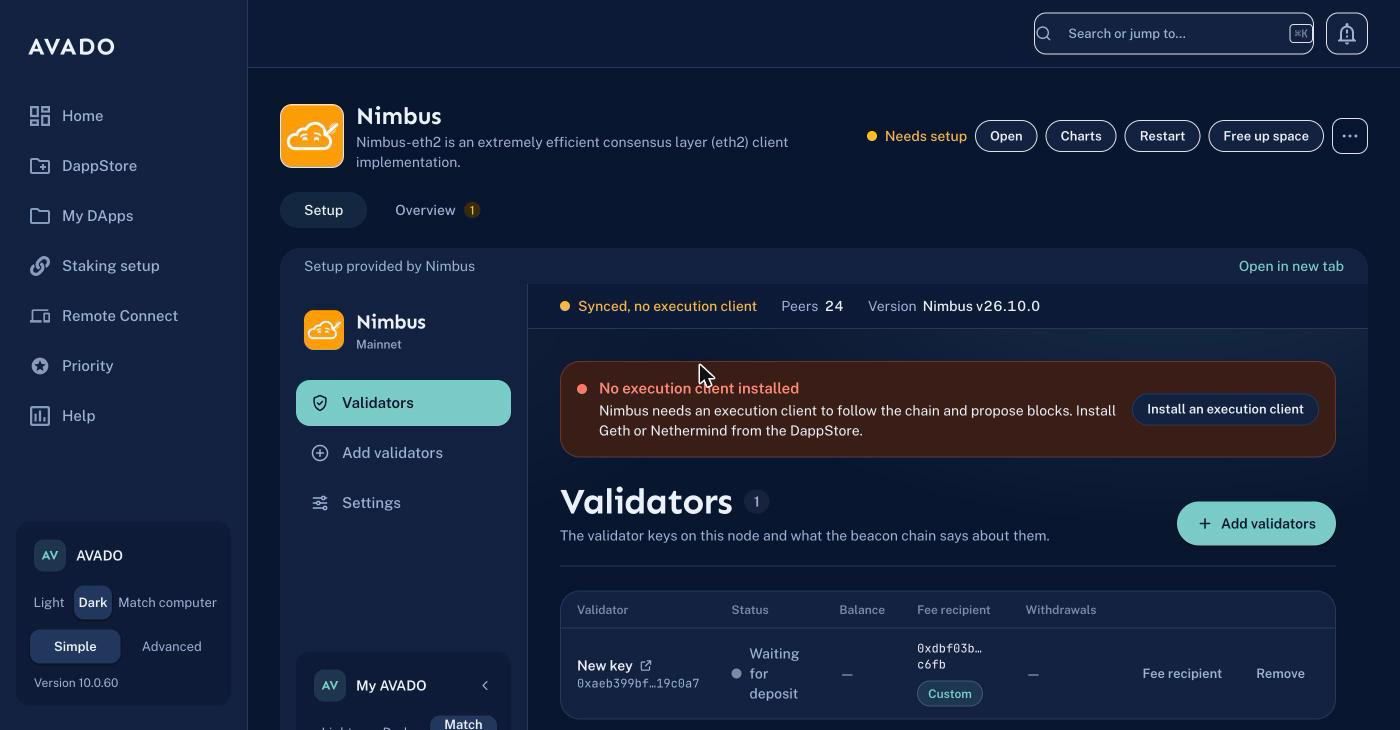
Open **My DApps**, then click **Nimbus** or **Teku**. You can also click **Open in new tab** to use it full screen.

<figure><img src="https://2996176873-files.gitbook.io/~/files/v0/b/gitbook-x-prod.appspot.com/o/spaces%2F0YTdumceG05uJMtaEgaT%2Fuploads%2Fgit-blob-22b59ad24413bf1b9f59c1ea5cc4c80566466189%2Fadmin-app-page-nimbus.png?alt=media" alt="The Nimbus page in the AVADO Admin, showing the Nimbus app in the Setup tab"><figcaption><p>The Nimbus app inside its page in the AVADO Admin.</p></figcaption></figure>

<figure><img src="https://2996176873-files.gitbook.io/~/files/v0/b/gitbook-x-prod.appspot.com/o/spaces%2F0YTdumceG05uJMtaEgaT%2Fuploads%2Fgit-blob-52d8247ab18387ccdaa69aabf9bc1945649844f8%2Fteku-validators.png?alt=media" alt="The Teku app: the Validators page with two validators and the status line at the top"><figcaption><p>The same app on Teku.</p></figcaption></figure>

## Your validators

The app opens on **Validators**. You see every validator on your AVADO, its status, its balance and where its rewards go.

<figure><img src="https://2996176873-files.gitbook.io/~/files/v0/b/gitbook-x-prod.appspot.com/o/spaces%2F0YTdumceG05uJMtaEgaT%2Fuploads%2Fgit-blob-f425b3b279989e5b3e70d5c6cad643d1d3f36925%2Fnimbus-validators.png?alt=media" alt="The Validators page with two validators, the status line at the top and a No execution client installed message"><figcaption><p>The <strong>Validators</strong> page.</p></figcaption></figure>

* **The line at the top** tells you how Nimbus or Teku is doing: **Synced** (all good), **Syncing** with a percentage, or a warning.
* **A coloured message** shows when something needs your attention, with a button that fixes it. For example **No execution client installed** has an **Install an execution client** button.
* Click the arrow next to a validator to see it on **beaconcha.in**.

## Add validators

**1. Click Add validators**

**2. Add your keystore files**

Drop them on the box, or click **choose files**. The files are called `keystore-m_12381_3600_…json`. You can add many at once.

<figure><img src="https://2996176873-files.gitbook.io/~/files/v0/b/gitbook-x-prod.appspot.com/o/spaces%2F0YTdumceG05uJMtaEgaT%2Fuploads%2Fgit-blob-54acd929a6ce0f32d9623dda1e94247b388861cd%2Fnimbus-add-validators.png?alt=media" alt="The Add validators page with one keystore file added"><figcaption><p>Each file shows the validator it belongs to.</p></figcaption></figure>

**3. Type your keystore password**

This is the password you chose when you created the keys.

**4. Only if these validators ran somewhere else before:** add the **slashing-protection file** from that machine.

**5. Click Import key**

That's it. The validators show up on the **Validators** page.

## Set your fee recipient

The fee recipient is the address that gets your block rewards (tips and MEV).

Go to **Settings** and enter your address under **Default fee recipient**. Then click **Save changes**. The client restarts, which takes a minute or two.

<figure><img src="https://2996176873-files.gitbook.io/~/files/v0/b/gitbook-x-prod.appspot.com/o/spaces%2F0YTdumceG05uJMtaEgaT%2Fuploads%2Fgit-blob-eb2f8697dca578a719a78efcbdd70d085947f53d%2Fnimbus-settings.png?alt=media" alt="The Settings page with Default fee recipient and Graffiti"><figcaption><p><strong>Settings</strong>: default fee recipient, graffiti, execution client and MEV-Boost.</p></figcaption></figure>

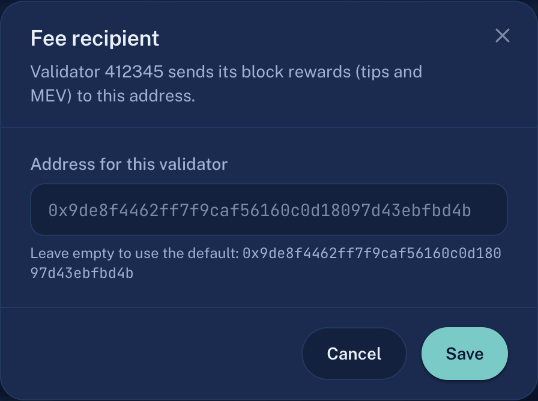
To use a different address for one validator, click **Fee recipient** next to it on the **Validators** page.

<figure><img src="https://2996176873-files.gitbook.io/~/files/v0/b/gitbook-x-prod.appspot.com/o/spaces%2F0YTdumceG05uJMtaEgaT%2Fuploads%2Fgit-blob-2386acc103e61a209669c63367f6dea8d85a2860%2Fnimbus-fee-recipient.png?alt=media" alt="The Fee recipient window for one validator" width="420"><figcaption><p>Leave it empty to use the default.</p></figcaption></figure>

{% hint style="warning" %}
Always copy your address from your wallet. If you type it and make a mistake, the app tells you: **This address has a typo**.
{% endhint %}

<figure><img src="https://2996176873-files.gitbook.io/~/files/v0/b/gitbook-x-prod.appspot.com/o/spaces%2F0YTdumceG05uJMtaEgaT%2Fuploads%2Fgit-blob-93a43499530ff489f525e95ab9736f8d11d2bbd3%2Fnimbus-fee-recipient-typo.png?alt=media" alt="The Fee recipient window showing: This address has a typo: its capital letters don&#x27;t match" width="420"><figcaption><p>The app catches typos in mixed-case addresses.</p></figcaption></figure>

## Settings

In **Settings** you can also:

* Change your **Graffiti** (the short text shown with blocks you propose).
* Choose your **Execution client** (Geth or Nethermind). The app shows which ones are installed.
* Turn on **MEV-Boost**. Install the MEV-Boost app first.

Click **Save changes** when you are done.

## Move a validator to another machine

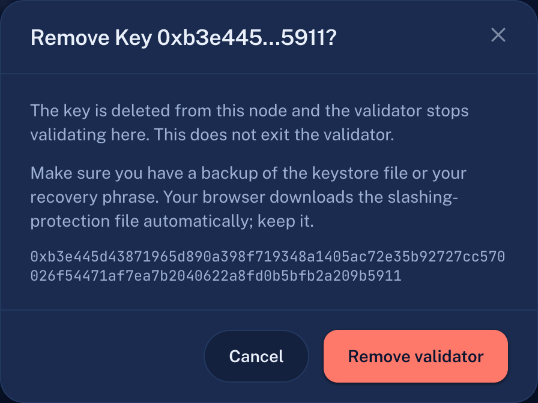
**1. Click Remove next to the validator**

<figure><img src="https://2996176873-files.gitbook.io/~/files/v0/b/gitbook-x-prod.appspot.com/o/spaces%2F0YTdumceG05uJMtaEgaT%2Fuploads%2Fgit-blob-b74f3f015cd581990e944fd0d7ff4c3b15c78b5a%2Fnimbus-remove.png?alt=media" alt="The Remove window: the key is deleted from this node, it does not exit the validator" width="420"><figcaption><p>Removing a key does <strong>not</strong> exit your validator.</p></figcaption></figure>

**2. Click Remove validator**

Your browser downloads a **slashing-protection file**. Keep it: you need it on the new machine.

<figure><img src="https://2996176873-files.gitbook.io/~/files/v0/b/gitbook-x-prod.appspot.com/o/spaces%2F0YTdumceG05uJMtaEgaT%2Fuploads%2Fgit-blob-18b70cd7435052fe278ce0e370f3e13d168848eb%2Fnimbus-removed.png?alt=media" alt="Key removed: wait at least 5 epochs, about 32 minutes, before you start this validator anywhere else" width="420"><figcaption><p>The app tells you how long to wait.</p></figcaption></figure>

**3. Wait at least 32 minutes**

Wait at least **5 epochs (about 32 minutes)** before you start the validator anywhere else. An hour is safer.

{% hint style="danger" %}
Never run the same validator on two machines at once. It gets slashed: you lose part of your stake and the validator is forced out.
{% endhint %}

**4. Import the keystore file and the slashing-protection file on the new machine**

## Exit a validator

An exit is permanent. Read [Exit from a Solo Validator](/staking-ethereum/solo-staking-32-eth/exit-from-a-solo-validator.md) first.

Click **Exit** next to the validator, type its number to confirm, then click **Exit validator**. The **Exit** button only shows for active validators.

<figure><img src="https://2996176873-files.gitbook.io/~/files/v0/b/gitbook-x-prod.appspot.com/o/spaces%2F0YTdumceG05uJMtaEgaT%2Fuploads%2Fgit-blob-3a317a9d40fa033428906fe6aee024b57d68f4d2%2Fnimbus-exit.png?alt=media" alt="The Exit validator window: an exit is permanent, type the validator index to confirm" width="420"><figcaption><p>Type the validator number to confirm.</p></figcaption></figure>

## Rocket Pool

If Rocket Pool is installed, the app reminds you: manage your Rocket Pool validators in the **Rocket Pool** app, not here. Rocket Pool adds its validators back by itself, and a different fee recipient can cost you a penalty.

## Advanced

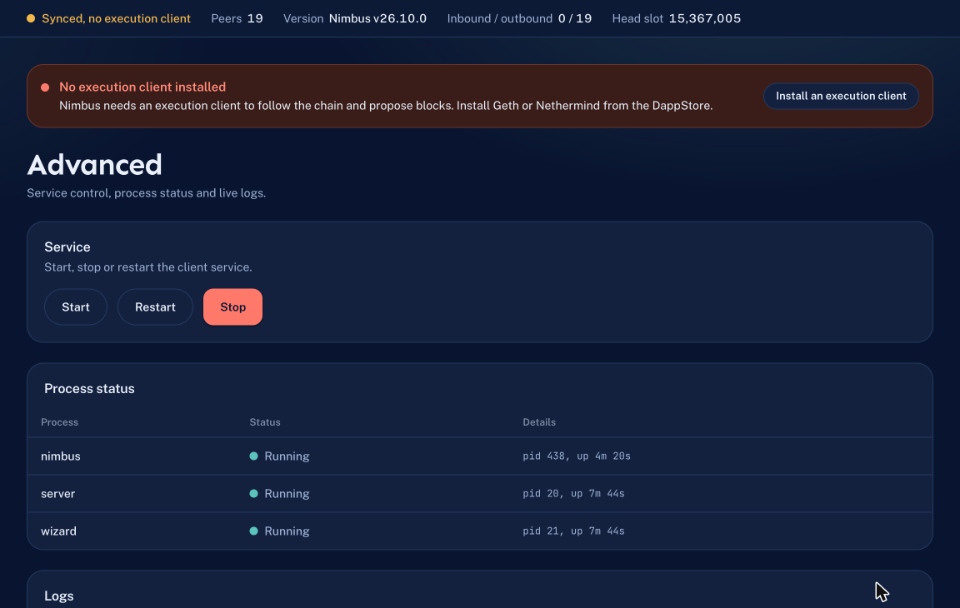
Switch to **Advanced** (bottom left) to see the **Advanced** page: start, stop or restart the client, check its processes and read its logs.

<figure><img src="https://2996176873-files.gitbook.io/~/files/v0/b/gitbook-x-prod.appspot.com/o/spaces%2F0YTdumceG05uJMtaEgaT%2Fuploads%2Fgit-blob-c76cb4aacb06c9611dd3d312c58d6ab3e3f82970%2Fnimbus-advanced.png?alt=media" alt="The Advanced page with Start, Restart and Stop buttons and the process status"><figcaption><p>The <strong>Advanced</strong> page. The logs are further down.</p></figcaption></figure>

## Light or dark

At the bottom left, choose **Light**, **Dark** or **Match computer**.