> For the complete documentation index, see [llms.txt](https://docs.ava.do/llms.txt). Markdown versions of documentation pages are available by appending `.md` to page URLs; this page is available as [Markdown](https://docs.ava.do/your-avado/finding-your-way-around/updates-storage-and-history.md).
# Updates, storage and history
How your AVADO keeps itself up to date, how to update by hand, how to see what uses your disk, and where to find a log of changes.
The **System** page gathers the housekeeping of your AVADO: updates, disk space, a history of changes, and maintenance. It has four tabs: **Overview**, **Updates**, **Storage** and **History**.
{% hint style="info" %}
**System** is only shown in the sidebar in [Advanced mode](/your-avado/finding-your-way-around/simple-and-advanced-mode.md). Switch to **Advanced** at the bottom of the sidebar to see it. Fix buttons on Home (for example **Review updates** or **Free up space**) also take you straight to the right tab.
{% endhint %}
## How updates arrive automatically
You normally don't have to do anything to stay up to date:
* **Apps:** every app has an **Auto-update** switch in **My DApps**. When it is on (the default), AVADO installs new versions of that app automatically.
* **AVADO system software:** the core packages that run your AVADO (such as the Admin and the DAPPMANAGER) update themselves in the same way. You find them, with their own **Auto-update** switches, under **Core packages** on the **System → Overview** tab.
{% hint style="warning" %}
Keep **Auto-update** switched on, especially for your execution and consensus clients. Clients must be updated before network upgrades (hard forks). A client that misses a hard fork stops following the chain, and your validators stop earning. If you switch it off, Home reminds you with the tip **Automatic updates are off for …**.
{% endhint %}
## Updating by hand: the Updates tab
When an update is waiting, Home shows **N app updates are available** or **An AVADO system update is available**. Click **Review updates**, or go to **System → Updates**.
The Updates tab when everything is up to date.
The tab has two parts:
* **App updates** lists every app with a newer version. When there is nothing to do, it says **All apps are up to date.**
* **System update** shows a waiting AVADO system update, with the core packages it changes and their old and new versions. Otherwise it says **Your AVADO system is up to date.**
### Update an app
1. Go to **System → Updates**.
2. Click **Update** next to the app. This opens the app's page in the DappStore.
3. Click **Update to …** and wait until the update is done.
{% hint style="info" %}
The Update button opens the exact version published in the AVADO store. This also works when your execution client is not running or not synced.
{% endhint %}
### Update the AVADO system
1. Go to **System → Updates**.
2. Under **System update**, click **Update system**.
3. Review the list of changes, then click **Update**.
4. Keep your AVADO powered on during the update. It takes a few minutes.
### If an update seems stuck
Wait 15 minutes, then reload the page. If the app still shows the old version, restart it and try the update again. If it still doesn't work, download the diagnostics report from **Help** and contact support.
If Home says **Can't check for updates**, your AVADO can't reach the AVADO store. Check its network cable and your internet connection. Your apps keep running in the meantime.
## Installing a package from an IPFS hash
Sometimes AVADO support gives you an **IPFS hash** (a long code starting with `Qm…`) to install a specific version of a package, for example a fix that isn't in the store yet.
1. Switch to **Advanced** mode at the bottom of the sidebar.
2. Go to **DappStore**.
3. Paste the hash into the search box (it says **Package name or IPFS hash** in Advanced mode) and click **Search**.
4. The package page opens. Check that it is the package you expect.
5. Click **Install** (or **Update to …** if the package is already installed).
### Bypass core restriction
For safety, AVADO only installs its **core** packages (such as the DAPPMANAGER or the Admin) from the official AVADO store. When you open a core package from an IPFS hash, the package page shows an extra switch: **Bypass core restriction**.
To install a core package from a hash:
1. Follow steps 1 to 4 above.
2. Turn on **Bypass core restriction**.
3. Click **Install** or **Update to …**.
{% hint style="danger" %}
Only bypass the core restriction with a hash you received from AVADO support through an official channel (for example or your Priority Care contact). A wrong or malicious core package can stop your AVADO from working. AVADO will never send you a hash in a private message on Discord or Telegram. See [Beware of Scammers](/your-avado/avado-support-community/beware-of-scammers.md).
{% endhint %}
## Storage
**System → Storage** shows how full your disk is and how much space each app uses.
The Storage tab: total disk use at the top, and each app's size below.
* **Disk** shows how much of the disk is used, in percent and in TB.
* **Apps** lists your apps from largest to smallest. For clients, click **How to free up this app's space** for advice.
* **Clean up unused images** removes old versions of apps that stay on disk after updates, and left-over data of apps you removed. This is safe: it never removes data of apps that are installed.
How to free space depends on the app:
* **Execution client** (Geth, Nethermind): these keep the whole chain state and grow over time. Resetting the client's data makes it sync again from scratch (several hours to a few days). This is safe for your keys, because no validator keys are stored in an execution client. Your validators cannot attest until it is synced again. See [The DApp Management Page](/your-avado/finding-your-way-around/the-dapp-management-page.md#controls).
* **Consensus client** (Teku, Prysm, Nimbus, Lighthouse): these normally stay under 200 GB. If yours is much larger, press **Free up space**. It deletes only the chain data and keeps your validator keys and slashing protection. **Never delete its data any other way.** See [Free up space on your consensus client](/your-avado/finding-your-way-around/free-up-space-on-your-consensus-client.md).
Consensus clients also show their **Storage mode** on this tab (**Recent data only (minimal)**, **All blocks (pruned)** or **Full history (archive)**) and a **Free up space** button. See [Free up space on your consensus client](/your-avado/finding-your-way-around/free-up-space-on-your-consensus-client.md).
{% hint style="warning" %}
If you run **Nethermind**, you can save about 800 GB by keeping only the last year of history. See [Save disk space](/staking-ethereum/setting-up-the-eth-clients/syncing-the-execution-client/nethermind.md#save-disk-space-keep-only-one-year-of-history).
Home warns you when the disk is 80% full, and shows **Action required** from 90%. When the disk is full, your clients stop and your validators go offline.
{% endhint %}
## History
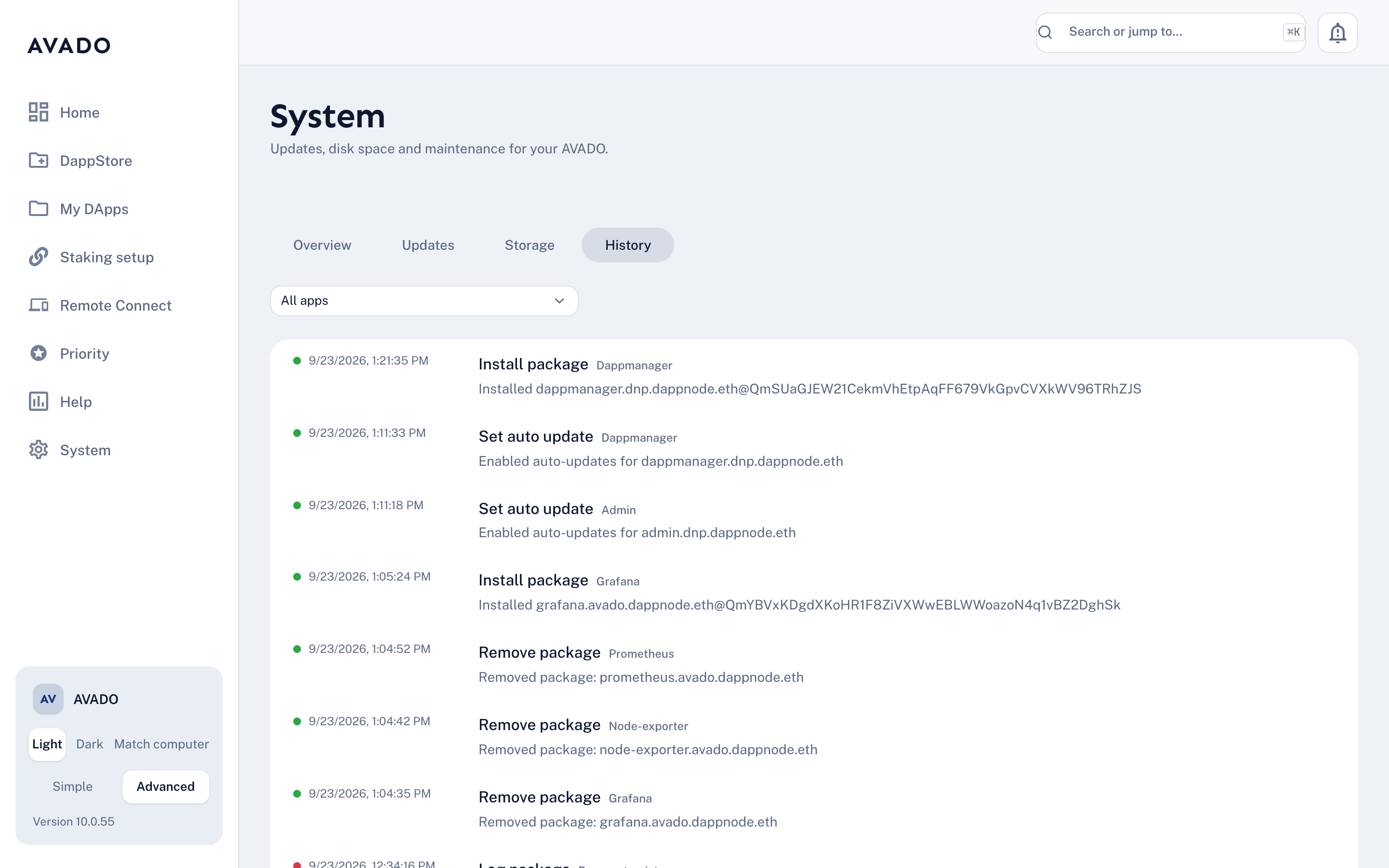
**System → History** is a log of what happened on your AVADO: installs, updates, removals, changes to auto-update, and so on. Each entry shows the date and time, what was done, and to which app. A green dot means it worked; a red dot means it failed.
The History tab.
Use the **All apps** menu at the top to show the history of one app only. This is useful to check when an app was last updated, or to tell support what changed before a problem started.
## Overview: core packages and maintenance
**System → Overview** lists the **Core packages** that run your AVADO, and has the **Maintenance** buttons:
* **Reboot my AVADO:** restarts the box. Useful if a package is misbehaving or the processor is at 100%. Your settings are kept and your packages start again after the reboot.
* **Disk cleanup:** cleans left-over data of removed packages. It does not remove data that is in use.
* **Shutdown:** stops all packages and shuts down your AVADO. Press the power button to start it again.
{% hint style="warning" %}
**Do not remove core packages.** Your AVADO needs them to work.
{% endhint %}